

Git for QA: What They Actually Ask in Interviews
'What's the difference between merge and rebase?' and 'how do you find the commit that broke everything?' — testers get asked these too. I've covered Git from a QA point of view: daily commands with real output, branches, conflicts, undoing changes, git bisect and a .gitignore for a test project. With interview tasks.
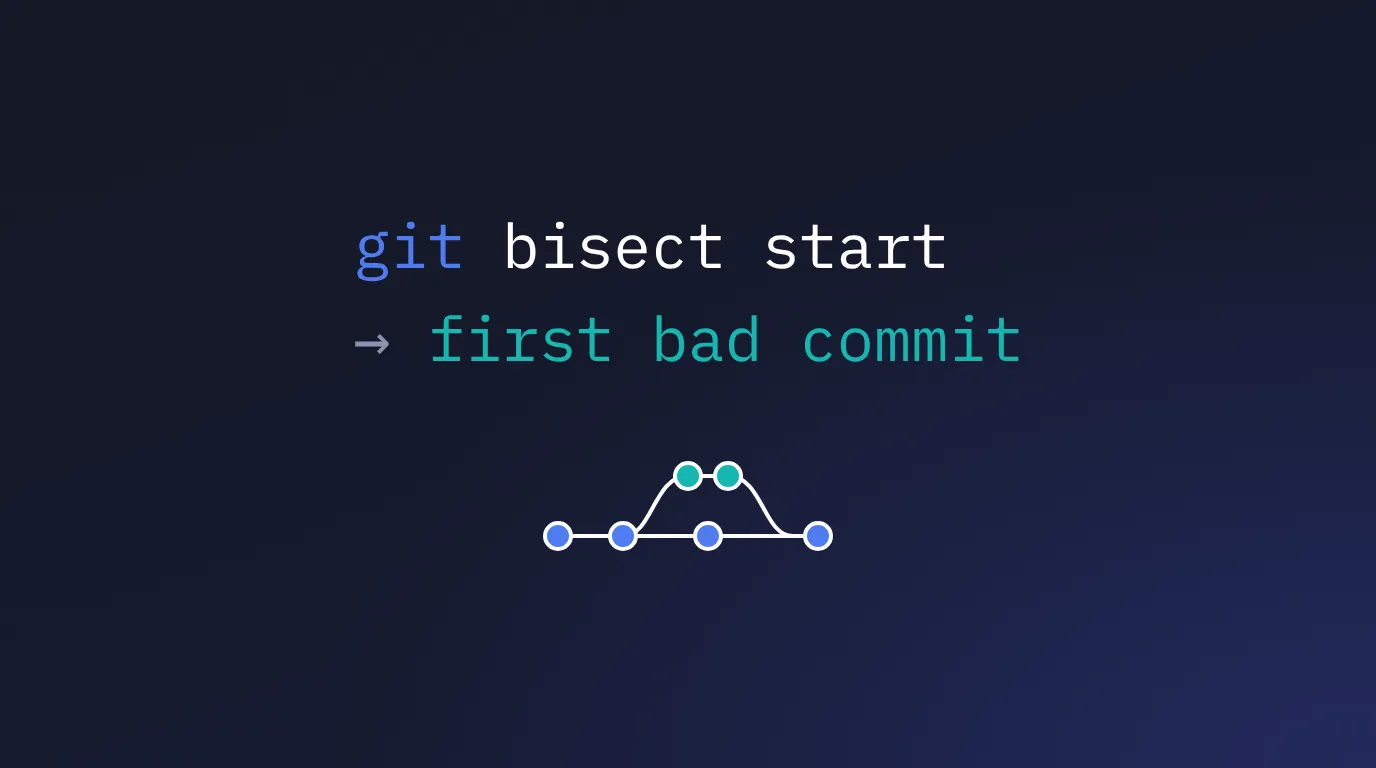
- git bisect: the row holds the commits between a good release and a bad one.
- The middle commit is tested first: it is good, so the bug came later.
- Halfway through the rest: this commit is bad, so the bug is here or earlier.
- The commit in between is good, so the bad one right after it is the culprit.
- He circles it: the first bad commit is found; now read its diff.
Everything QA needs to know about Git — from your first clone to finding the commit with the bug, with real command output
Why Does QA Need Git at All?
Because everything a tester works with lives in a repository: the product code, the automated tests, the test data, the CI configuration.
Here’s a typical situation. On Monday the cart discount was calculated correctly. On Thursday it isn’t. Forty commits landed in the project between those two days. A tester without Git writes “it worked last week” in the bug report. A tester with Git finds the exact commit, the author and the line that broke things — in five minutes.
The first bug report will take half a day to investigate. The second one gets fixed before lunch.
QA needs Git for four things:
| # | Why | Example |
|---|---|---|
| 1 | Store automated tests | Tests are code. They live in a repository, go through review and run in CI |
| 2 | Understand what changed in a build | The list of commits between two releases is a ready-made plan of what to retest |
| 3 | Find the commit that broke a feature | “Broken in commit 67786b4” instead of “it used to work” |
| 4 | Work in a team | Your tests in a separate branch, a pull request, a review — the same way developers work |
The basic commands and the rules for commit messages were already covered in the CI/CD article. Here we’ll go deeper: what actually happens after each command, and what to do when something goes wrong.
What Is Git (in Plain Words)
Remember a folder with the files report.docx, report_v2.docx, report_final.docx, report_final_really.docx. That’s a version control system built by hand. It works badly: you can’t tell how the versions differ, who changed what, or which one is the real one.
Git does the same thing, only neatly. It remembers the state of every file in the project at moments you choose yourself. You can go back to any of those moments, compare two of them, and find out who changed each line and why.
Three key concepts:
- Repository — the project folder together with its whole history of changes. There’s a copy on your computer (local) and one on a server — GitHub, GitLab, Bitbucket (remote,
origin). - Commit — a snapshot of the project at one point in time: which files changed, who the author is, when, and with what message. Every commit has a unique hash, for example
67786b4. - Branch — a separate line of commits. In your own branch you can write tests without breaking anything in the main one (
main).
And one more thing, without which the rest won’t make sense. A change passes through three areas, and half of Git’s commands just move things between them:
- Working directory — the files on disk that you edit.
- Index (staging area) — the list of what will go into the next commit.
git addputs changes here. - Repository — the commit history.
git commitwrites changes here.
The Daily Loop: clone, status, add, commit, pull, push
All the examples below were run in a real practice repository, shop-tests: it holds a cart calculation function in Python and its tests. The command output is real; only the server address is replaced with a placeholder.
To get the project — git clone https://github.com/example/shop-tests.git, then cd shop-tests.
The command you should type more often than any other is git status. It changes nothing; it only shows what’s going on. Let’s add a test file, tests/test_discount.py, and take a look:
$ git status
On branch main
Your branch is up to date with 'origin/main'.

Untracked files:
  (use "git add <file>..." to include in what will be committed)
        tests/test_discount.py

nothing added to commit but untracked files present (use "git add" to track)
Untracked means Git sees the file but isn’t tracking it. We put it in the index and make a commit:
$ git add tests/test_discount.py
$ git commit -m "Add discount boundary tests"
[main 29b2b1f] Add discount boundary tests
 1 file changed, 9 insertions(+)
 create mode 100644 tests/test_discount.py
So far the commit exists only on your computer. We send it to the server:
$ git push
To https://github.com/example/shop-tests.git
 ! [rejected]        main -> main (fetch first)
error: failed to push some refs to 'https://github.com/example/shop-tests.git'
hint: Updates were rejected because the remote contains work that you do not
hint: have locally. This is usually caused by another repository pushing to
hint: the same ref. If you want to integrate the remote changes, use
hint: 'git pull' before pushing again.
Nothing is broken. While you were writing the test, a colleague pushed a commit of their own. Git won’t let you overwrite someone else’s work: first fetch it, then push yours.
$ git pull --rebase
Successfully rebased and updated refs/heads/main.

$ git push
To https://github.com/example/shop-tests.git
   89c6396..4d8ac34  main -> main

$ git log --oneline
4d8ac34 Add discount boundary tests
89c6396 Add config with API timeout
52b32a7 Add README
b05c3f5 Add cart total calculation
git pull --rebase fetched the colleague’s commit (89c6396) and put yours on top of it. Notice that the hash of your commit changed from 29b2b1f to 4d8ac34. I’ll explain why in the section on rebase.
fetch vs pull is a common question. git fetch only downloads new commits from the server and changes nothing in your files. git pull is fetch plus an immediate merge into your branch. If you want to see what arrived first, run git fetch and then git log --oneline main..origin/main.
Branches and Switching
Writing tests straight in main isn’t done: the main branch has to be in a working state at any moment. Each task gets its own branch.
$ git switch -c tests/checkout-timeout
Switched to a new branch 'tests/checkout-timeout'
git branch shows the list of branches, with the current one marked by an asterisk. To go back to the main branch — git switch main. And git switch - takes you to the previous branch, like a “back” button.
switch or checkout? In older guides and in interviews you’ll come across git checkout. It does the same thing and still works:
| Task | New command | Old command |
|---|---|---|
| Switch to a branch | git switch main |
git checkout main |
| Create a branch and switch to it | git switch -c tests/login |
git checkout -b tests/login |
| Return a file to the last commit | git restore config.py |
git checkout -- config.py |
checkout did too many different things, so in Git 2.23 it was split into switch (branches) and restore (files). You need to know both. Name branches so it’s clear what’s inside: tests/checkout-timeout, QA-142-cart-discount.
Merge and Rebase
You’re working in your branch tests/login, and meanwhile main has moved ahead. There are two ways to join the two lines. Merge creates a new commit M with two parents — the history is kept as it was. Rebase takes your commits and “replants” them onto the tip of main — the history comes out straight, as if you had only just started the work.
before:      C---D        tests/login
            /
       A---B---E---F      main

merge:       C---D
            /     \
       A---B---E---F---M  main

rebase:                C'--D'   tests/login
                      /
       A---B---E---F            main
C' and D' are new commits with the same content but different hashes. You’ve already seen this above: after git pull --rebase, commit 29b2b1f became 4d8ac34.
| Merge | Rebase | |
|---|---|---|
| History | Kept as it was, with forks | A straight line |
| Commit hashes | Don’t change | Change |
| Safety | Always safe | Dangerous for branches other people work in |
| When to use | Merging a finished branch into main; shared branches |
Updating your own branch before a pull request |
The main rule: don’t rebase a branch someone else is working in. Rebase rewrites history. Your colleague still has the old commits, you have the new ones — and Git treats them as different.
If you’ve already pushed your branch to the server, a plain git push after a rebase (or an --amend) will be rejected. You need a forced one:
$ git push --force-with-lease
To https://github.com/example/shop-tests.git
 + 5255f19...5381a0a tests/empty-cart -> tests/empty-cart (forced update)
--force-with-lease is safer than --force: it refuses to push if the branch on the server has gained someone else’s commits you don’t know about. And only to your own branch — never to main.
A Merge Conflict, Step by Step
A conflict happens when two people changed the same line. Git doesn’t know whose version is right and asks you to decide.
An example. The file config.py had TIMEOUT = 10. In your branch you set it to 30 so the checkout tests would stop failing. A developer set it to 15 in main. We update our branch:
$ git merge main
Auto-merging config.py
CONFLICT (content): Merge conflict in config.py
Automatic merge failed; fix conflicts and then commit the result.
Step 1. See where the conflict is. git status lists such files under Unmerged paths, marked both modified: config.py.
Step 2. Open the file. Git has marked the disputed spot right inside it:
BASE_URL = "https://staging.example.com"
<<<<<<< HEAD
TIMEOUT = 30
=======
TIMEOUT = 15
>>>>>>> main
It reads like this: between <<<<<<< HEAD and ======= is your version (the current branch). Between ======= and >>>>>>> main is the version from the branch you’re merging in.
Step 3. Decide what should stay. There are three options: your version, the other version, or a combination of both. If it’s not clear why your colleague changed the line — ask them. It’s faster than finding out later why their tests failed. Delete all three marker lines and leave the code you need — here that’s TIMEOUT = 30.
Step 4. Tell Git the conflict is resolved and finish the merge: git add config.py, then git commit.
Step 5. Run the tests. Git only checks text. Whether the code works after the merge, it has no idea.
After that the history looks like this:
$ git log --oneline --graph
*   b94ce27 Merge main into tests/checkout-timeout
|\
| * 22711fe Raise API timeout to 15s
* | 99a07cc Raise API timeout to 30s for checkout tests
|/
* 4d8ac34 Add discount boundary tests
* 89c6396 Add config with API timeout
* 52b32a7 Add README
* b05c3f5 Add cart total calculation
Lost in the middle of a conflict? git merge --abort puts everything back the way it was before the merge. During a rebase, conflicts are resolved the same way, except that you finish with git rebase --continue instead of git commit, and cancel with git rebase --abort.
Pull Requests Through QA’s Eyes
A pull request (PR; in GitLab — a merge request) is a request to merge your branch into the main one. It comes with the list of changes, a discussion and the results of the automated checks. Until the PR is approved, the code doesn’t get into main.
When you review someone else’s PR. For a tester this is the earliest moment a bug can be caught — the code hasn’t even reached the test environment yet.
| What to look at | Why |
|---|---|
| The description and the link to the ticket | To understand what was supposed to change |
| The list of changed files | To understand what to retest. The ticket is about the cart, but the payment module was changed? That’s a question for the author |
| Whether there are tests for the new behaviour | Code without tests is a reason to ask how it was verified |
| CI status | A red pipeline means it’s too early to look further |
| Edge cases in the code | An empty list, zero, null — the things the author may not have thought of |
To check the changes by hand, you can pull the PR’s branch to your machine: git fetch, then git switch <branch-name>.
When your PR with automated tests is reviewed. Reviewers look at the same things as in product code: are the test names clear, is there copy-paste, do the tests depend on each other, are there passwords in the code. A small 50-line PR gets reviewed in ten minutes. A 2000-line PR will sit there for a week.
How to Undo Things
The most nerve-racking part of Git. The right command depends on how far the change has gone.
| Situation | Command | What happens | Can you lose work? |
|---|---|---|---|
Messed up a file, haven’t run add yet |
git restore config.py |
The file goes back to the version in the index (usually the last commit) | Yes, the edits are gone for good |
Ran add on the wrong file |
git restore --staged config.py |
The file leaves the index, the edits stay | No |
| A typo in the last commit message | git commit --amend -m "..." |
The last commit is replaced with a new one | No, but the hash changes |
| Undo a commit, keep the changes in the index | git reset --soft HEAD~1 |
The commit disappears, the files are ready for a new commit | No |
| Undo a commit, keep the changes in the files | git reset HEAD~1 (same as --mixed) |
The commit disappears, the edits stay but are no longer in the index | No |
| Undo a commit and throw the changes away | git reset --hard HEAD~1 |
The commit and all the edits disappear | Yes |
| Undo a commit that’s already been pushed | git revert <hash> |
A new commit with the reverse changes is created | No |
| Need to switch urgently, work isn’t finished | git stash, then git stash pop |
The edits are tucked away and come back later | No |
HEAD~1 means “one commit back from the current one”. The difference between the three reset modes is easy to see in git status --short. The first column is the index, the second is the working directory. After --hard the output is empty: the changes are gone everywhere.
$ git reset --soft HEAD~1
$ git status --short
M  README.md

$ git reset HEAD~1
Unstaged changes after reset:
M       README.md
$ git status --short
 M README.md

$ git reset --hard HEAD~1
HEAD is now at 5381a0a Add test for empty cart
$ git status --short
revert works differently — it removes nothing, it adds:
$ git revert --no-edit HEAD
$ git log --oneline -3
7491a35 Revert "Add note to README"
c574cca Add note to README
5381a0a Add test for empty cart
Both commits stay in the history. That’s why revert is safe for shared branches and reset isn’t.
stash helps when you’re in the middle of something and you’re asked to urgently check something in another branch. git stash hides your edits, the working directory becomes clean, and you can switch. When you’re back — git stash pop, and the edits are in place again.
A safety net: git reflog. Git records every move through the history, including “deleted” commits. The output of git reflog shows the hash of a commit wiped out by reset --hard, and git reset --hard <hash> brings it back. The only thing reflog can’t save is work that was never committed.
Reading History: log, diff, show, blame
For a tester this matters more than being able to write commits. History answers the question “what changed, and what needs retesting now”.
What went into the build. Releases are usually marked with tags. All commits since release v1.0:
$ git log --oneline v1.0..HEAD
5c2276c Lower API timeout to 20s
93f5bfc Add promo code tests
1d0faba Add promo codes
992646f Document free shipping in README
67786b4 Refactor discount calculation
c590c65 Add shipping tests
b8afc0c Add shipping cost calculation
7491a35 Revert "Add note to README"
c574cca Add note to README
Nine commits. Shipping, discounts, promo codes, the timeout — there’s your list of areas for regression. Which files were touched is shown by git diff --stat v1.0 HEAD.
git diff shows the changes themselves, line by line: removed lines with a minus, added lines with a plus. With no arguments it compares the working directory with the index; git diff --staged compares the index with the last commit (what will go into the commit); git diff main tests/login compares two branches; git diff v1.0 HEAD -- cart.py compares one file between the release and the current state.
git blame config.py shows, for every line of the file, the commit, author and date of its last change:
89c63967 (Merjen 2026-11-11 09:26:37 +0000 1) BASE_URL = "https://staging.example.com"
5c2276c3 (Merjen 2026-11-11 09:26:37 +0000 2) TIMEOUT = 20
The name sounds menacing, but the command isn’t for finding someone to blame. It answers the question “who do I ask why this line is the way it is”.
git show <hash> opens up a single commit: author, date, message and the changes themselves. There’s an example in the next section.
Three more useful variants of log:
git log --oneline --graph --all— all branches as a diagram (there was an example in the conflict section)git log --oneline -- cart.py— only the commits that changed this filegit log --oneline -S "discount // 100"— the commits in which this text appeared or disappeared
git bisect: Finding the Commit That Broke Everything
Back to the situation from the start of the article. An item priced 19.99 with a 15% discount should cost 16.99. Right now the system calculates this:
$ python3 -c "from cart import total; print(total([19.99], discount=15))"
17.99
All ten automated tests are green — none of them covers this case. In release v1.0 the calculation was correct. There have been nine commits since.
Checking them one by one takes a while. git bisect does a binary search: it takes the commit in the middle and asks whether it’s good or bad. Every answer throws away half of the candidates. After each answer Git switches the project to the next commit by itself — all you do is check and answer.
$ git bisect start
status: waiting for both good and bad commits
$ git bisect bad
status: waiting for good commit(s), bad commit known
$ git bisect good v1.0
Bisecting: 4 revisions left to test after this (roughly 2 steps)
[c590c659fdd5e6704453413c0eab1a10348f09f1] Add shipping tests

$ python3 -c "from cart import total; print(total([19.99], discount=15))"
16.99
$ git bisect good
Bisecting: 2 revisions left to test after this (roughly 1 step)
[992646f18f199fb0f45bff5f6bdcbe6a43c58b8d] Document free shipping in README

$ python3 -c "from cart import total; print(total([19.99], discount=15))"
17.99
$ git bisect bad
Bisecting: 0 revisions left to test after this (roughly 0 steps)
[67786b48b4df69cfb61e428ebc66742d02f496bc] Refactor discount calculation

$ python3 -c "from cart import total; print(total([19.99], discount=15))"
17.99
$ git bisect bad
67786b48b4df69cfb61e428ebc66742d02f496bc is the first bad commit
commit 67786b48b4df69cfb61e428ebc66742d02f496bc
Author: Merjen <merjen@example.com>
Date:   Wed Nov 11 09:26:37 2026 +0000

    Refactor discount calculation

 cart.py | 3 ++-
 1 file changed, 2 insertions(+), 1 deletion(-)
Three checks instead of nine. For a thousand commits, ten would be enough. At the end, be sure to run git bisect reset — it takes you back to main. Otherwise you’ll stay on the old commit.
Now let’s see what exactly was in that commit (a fragment of the output):
$ git show 67786b4
-    return round(subtotal * (100 - discount) / 100, 2)
+    saved = subtotal * discount // 100
+    return round(subtotal - saved, 2)
There’s the cause: // in Python is division that drops the fractional part. A discount of 2.9985 turned into 2.0. For whole prices like 100 and 200 there’s no difference, which is why the old tests noticed nothing.
If the check can be expressed as a command, Git will walk the whole path by itself. The command has to exit with code 0 when things are fine and with a non-zero code when they’re not:
git bisect start HEAD v1.0
git bisect run python3 -c "from cart import total; assert total([19.99], discount=15) == 16.99"
git bisect reset
The result is the same — 67786b4, only without a single manual step. Instead of python3 -c any command will do: a script, or a run of an automated test that reproduces the bug.
After this, the bug report doesn’t say “the discount is calculated wrong” but “broken in commit 67786b4, integer division in cart.py, example: 19.99 and 15%”. And a new test for this case goes into the same PR as the fix.
.gitignore for a Test Project
A test project produces a lot of junk: reports, screenshots, caches, dependency folders. None of it belongs in the repository. The .gitignore file in the project root lists what Git should not notice.
Without it, git status shows .env, node_modules/ and reports/ as new files, and one careless git add . sends all of it to the repository along with the token. An example for a project with automated tests:
# Dependencies and cache
__pycache__/
.pytest_cache/
.venv/
node_modules/
# Reports and artifacts
reports/
allure-results/
playwright-report/
test-results/
*.log
# Secrets
.env
.env.*
!.env.example
# IDE and OS
.idea/
.vscode/
.DS_Store
| What not to commit | Why |
|---|---|
| Reports, screenshots, videos of test runs | They’re generated again on every run and bloat the repository |
node_modules/, .venv/ |
They’re restored with one command from package.json or requirements.txt |
.env with passwords and tokens |
A secret in the repository is visible to everyone with access, and it stays in the history |
| IDE settings, system files | Everyone has their own; in a shared project they only get in the way |
The line !.env.example is an exception to the rule. .env itself is ignored, while an example with empty values (API_TOKEN=) is committed so that a new person on the team can see which variables are needed.
You can check which rule ignores a file with git check-ignore -v .env.
Important: .gitignore has no effect on files that are already committed. If .env got into the repository earlier, Git will keep tracking it. You have to stop tracking it and commit that — the file itself stays on disk:
git rm --cached .env
git commit -m "Stop tracking .env"
But the file is still visible in older commits. What to do about that — see task 3 below.
Git Flow and Trunk-Based
In an interview you may be asked which branching model your team used. There are two main ones.
| Git Flow | Trunk-based | |
|---|---|---|
| Branches | main, develop, feature/*, release/*, hotfix/* |
One main branch (main) and short branches that live a day or two |
| Releases | On a schedule, through a release branch | Often, straight from main |
| Where QA tests | On the release branch before shipping | On every PR; automated tests carry most of the load |
| Who it suits | Versioned products: mobile apps, packaged software | Web services with continuous delivery |
For QA the difference is practical. Git Flow has a stabilisation period: the release branch is frozen and regression is under way. Trunk-based has no such period, and without reliable automated tests in CI that model doesn’t work.
Tasks from Real Interviews
Task 1: “It worked yesterday, it doesn’t today”
Yesterday the feature worked, today it’s broken. Thirty commits were merged into
mainin between. How will you find the cause?
Answer: first I’ll look at what changed: git log --oneline between yesterday’s state and today’s, and separately for the module’s files — git log --oneline -- path/to/module. Often the suspicious commit is obvious from its title.
If not — git bisect. I mark the current commit as bad, yesterday’s as good, and check the commits Git offers. Thirty commits is about five checks. If there’s an automated test that reproduces the bug, I run git bisect run and get the answer with no manual work. In the bug report I write the commit hash and what exactly changed in it.
Task 2: “Pushed a commit to main that broke the tests”
You pushed a commit to a shared branch and the pipeline failed for the whole team. How do you roll it back?
Answer: git revert <hash> and push. A new commit appears that undoes the changes of the first one. The history stays intact, and all my colleagues need to do is git pull.
git reset --hard with a force push is not an option here: it rewrites the history of a shared branch. Anyone who has already pulled my commit will have a history that diverges from the server, and other people’s commits pushed after mine can be wiped out. The rule is simple: whatever has been pushed to a shared branch is undone only with revert.
Task 3: “A password got into the repository”
You committed a
.envfile with a token for the test environment and pushed it. What do you do?
Answer: the very first thing is to revoke or rotate the token. Not delete the file — change the secret. From the moment of the push, anyone with access to the repository could have downloaded it, so it has to be treated as compromised.
Then the cleanup: git rm --cached .env, add .env to .gitignore, commit. Deleting the file with a new commit isn’t enough — it’s still in the history and can be pulled out with one command. The history can be cleaned with special tools (for example, git filter-repo), but that means rewriting history for the whole team, and the decision is made together with the team lead. And I tell the team — you can’t stay silent about something like this.
Task 4: “A conflict in a file with tests”
You update your branch from
mainand get a conflict in the file that holds your automated tests. What do you do?
Answer: git status — to see which files are in conflict. I open the file and find the markers <<<<<<<, =======, >>>>>>>. My version is on top, the version from main is below.
Next I work out what the author of the other change was trying to do — through git log for the file, or I simply ask. In tests you often need to keep both edits: I added a test, and a colleague added a test in the same place. I remove the markers, run git add, finish the merge and always run the tests. What I don’t do: pick “accept my version” without looking — that silently deletes someone else’s work.
Task 5: “merge or rebase?”
You have a branch with automated tests, and
mainhas moved ahead in the meantime. How will you update the branch before a pull request?
Answer: it depends on the team’s rules, and I’ll check them first. If the branch is mine alone — I’ll run git rebase main: the history will be straight and easier for the reviewer to read. After that I’ll need git push --force-with-lease, because the commit hashes have changed.
If someone else is working in the branch — only git merge main. Rebasing a shared branch will break my colleague’s history. I’d explain the difference in one sentence: merge keeps the history as it was and adds a merge commit, rebase rewrites my commits on top of the fresh main.
5 Traps Candidates Fall Into
1. Running git add . without looking.
Reports, screenshots, node_modules and .env fly into the commit. Before every commit — git status and git diff --staged. It takes thirty seconds.
2. Fixing everything with reset --hard and push --force.
Both commands delete work — yours or someone else’s. What’s been pushed to a shared branch is undone with revert. A force push goes only to your own branch and only with --force-with-lease.
3. Knowing only the definitions of merge and rebase.
“Rebase makes the history linear” is half an answer. The interviewer is waiting for the rest: the hashes change, so we don’t touch shared branches.
4. Being afraid of conflicts.
A conflict isn’t an error, it’s a question: “there are two changes here, which one stays?”. A candidate who calmly walks through the steps looks more confident than one who “re-clones the repository in cases like that”.
5. Thinking .gitignore removes a file from the repository.
It only affects untracked files. A file that’s already committed first has to be removed with git rm --cached. And a secret that got into the history has to be changed.
Checklist: What to Know Before the Interview
- Concepts: repository, commit, branch,
origin,HEAD; working directory, index, history - Daily commands:
clone,status,add,commit,pull,push; howfetchdiffers frompull - Branches:
switchandcheckout, creating and deleting a branch, how to name branches - Joining work:
mergevsrebase, when to use which, why you can’t rebase a shared branch - Conflicts: what the markers look like, the order of steps,
merge --abort - Undoing:
restore, the threeresetmodes,revert,commit --amend,stash; which of these are safe for a shared branch - History:
log --oneline --graph,diff,show,blame; how to find out what went into a build - Bug hunting:
git bisect— the idea of binary search and the commandsstart,good,bad,reset - Hygiene:
.gitignore, what must not be committed, what to do about a secret in the repository - Process: what a pull request is, how Git Flow differs from trunk-based
That’s enough for 90% of QA interviews. You don’t need to know Git’s internals or remember every flag by heart — it’s enough to work with branches confidently, not be afraid of conflicts, and understand which command deletes what.
Useful Resources
- Pro Git — the official free book. The first three chapters are enough to start with.
- Learn Git Branching — an interactive trainer: branches, merge and rebase are drawn right on the screen.
- git bisect documentation — the official description with all the options, including
bisect run. - GitHub Docs: Pull requests — how to create and review a pull request.
Free QA course with hands-on exercises at annayev.com (English, Russian, Turkish).
Give it a thumbs up if this was useful. What Git question have you been asked in an interview? Tell us in the comments.