

Networking and the Web for QA: What They Actually Ask in Interviews
'What happens when you type a URL and press Enter?' is a classic QA interview question. I've broken the answer down step by step: DNS, TCP, TLS, HTTP, cookies, caching, CORS and the Network tab in DevTools. With commands you can run and interview tasks.
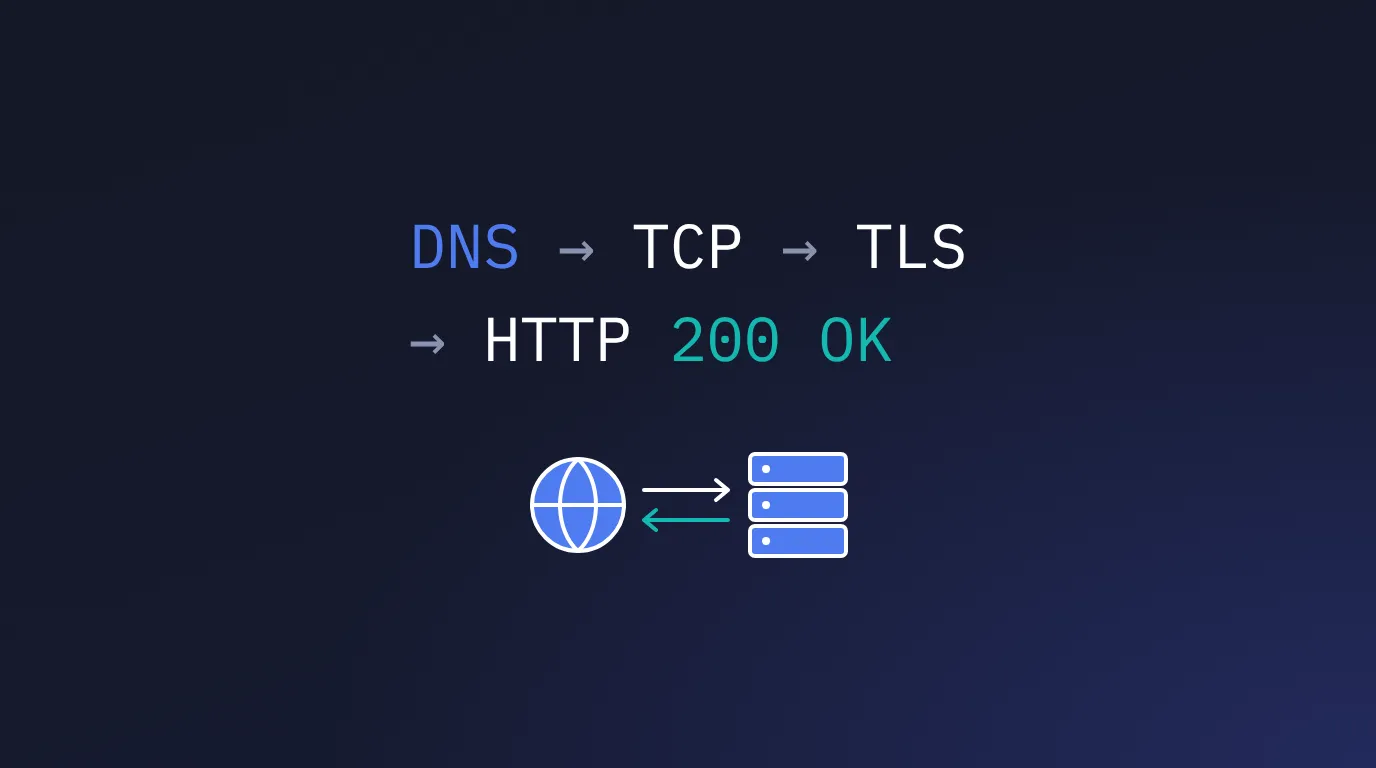
- The tester types a request in the terminal, like curl with a URL.
- DNS: the name is looked up and turned into the server's IP address.
- TCP: a connection with the server is opened.
- TLS: the connection is encrypted; the lock means HTTPS.
- The server handles the request and answers 200 OK; thumbs up.
How the web works — from typing an address to a rendered page, and where a tester can peek at every step
Why Should QA Understand Networking at All?
Because there’s a long road between the button in the browser and the code on the server. And it breaks in all sorts of places.
Here’s a typical situation. A tester files a bug: “the site won’t open”. A developer opens it — works fine for them. The bug gets closed as “cannot reproduce”. Next day, same story. The cause could be anything: a stale entry left in the tester’s hosts file, an expired certificate on the test environment, the browser showing a page from cache. None of these causes is in the application code. A tester who understands the network writes it differently: “The GET /api/cart request isn’t going out: CORS error in the console, HAR file attached”. A bug like that gets fixed the same day.
QA needs networking knowledge for four things:
| # | Why | Example |
|---|---|---|
| 1 | Pinpoint the bug | Is the problem in DNS, the certificate, the cache, the frontend or the backend? |
| 2 | Write clear bug reports | URL, status code, headers, a HAR file instead of “doesn’t work” |
| 3 | Check what the UI doesn’t show | Cookie attributes, caching headers, redirects |
| 4 | Reproduce intermittent bugs | Slow network, offline, stale cache, a different server |
How the Web Works (in Plain Words)
Imagine you’re sending a letter to a large organization. The envelope has the building’s address and an office number. The letter follows agreed rules: who it’s for, who it’s from, what’s needed. The organization sends a reply to your return address. The web works the same way. The browser sends a request, the server sends a response. This is called the client-server model: the client always asks first, the server only answers.
Three key concepts:
- Client — whoever sends the request: a browser, a mobile app, Postman,
curl. - Server — a program that waits for requests and responds to them.
- Protocol — the rules the client and the server use to talk. For the web, that’s HTTP.
And two more words you can’t go further without:
- IP address — a computer’s address on the network, like a building’s address. It looks like this:
104.20.23.154(IPv4) or2606:4700:10::6814:179a(IPv6). - Port — the “office number” inside the building. Many programs run on one server, and the port says which of them the request is for. A web server usually listens on port
80(HTTP) and443(HTTPS), PostgreSQL —5432, SSH —22.
Anatomy of a URL
A URL is the address of a resource. Let’s take one apart:
https://shop.example.com:8443/catalog/phones?brand=apple&page=2#reviews
| Part | In the example | What it means |
|---|---|---|
| Scheme | https |
The protocol: http or https |
| Host | shop.example.com |
The server’s domain name or IP address |
| Port | 8443 |
If omitted: 80 for http, 443 for https |
| Path | /catalog/phones |
Which resource on the server you want |
| Query parameters | ?brand=apple&page=2 |
key=value pairs separated by & |
| Fragment | #reviews |
A place on the page. Not sent to the server |
- The fragment stays in the browser. The server never sees anything after
#. If your#reviewsisn’t in the server logs — that’s normal, not a bug. - Query parameters are visible to everyone. They end up in browser history, server logs and the
Refererheader. A password or token in the URL is a security bug. - Special characters get encoded. A space becomes
%20, non-Latin letters become long sequences like%D1%82. This is called URL encoding. Searching for a term with a space, an ampersand or a#is a good test.
What Happens When You Type a URL and Press Enter
The main question of this article. It’s best answered step by step:
| # | Step | What happens | Where to see it |
|---|---|---|---|
| 1 | URL parsing | The browser extracts the scheme, host, port and path. It checks whether the page is in the cache | The address bar; Network → Size column: (disk cache) |
| 2 | DNS lookup | The browser finds the IP address for the name example.com |
nslookup, dig; Network → Timing → DNS Lookup |
| 3 | TCP connection | The browser and the server establish a connection (three packets: SYN, SYN-ACK, ACK) | Timing → Initial connection; curl -v |
| 4 | TLS handshake | For HTTPS: the server presents its certificate, both sides agree on encryption keys | Timing → SSL; the icon to the left of the address; curl -v |
| 5 | HTTP request | The browser sends GET / with headers and cookies |
Network → Headers → Request Headers |
| 6 | Server processing | The request passes through the load balancer, the application, the database | Server logs; Timing → Waiting for server response |
| 7 | HTTP response | The server returns a status code, headers and a body (HTML) | Network → Headers, Response |
| 8 | Rendering | The browser parses the HTML, loads CSS, JS and images (a separate request per file) and builds the page | Network → all the other rows; the Console and Performance tabs |
The short version for an interview: “DNS → TCP → TLS → HTTP request → server → HTTP response → rendering”. Then you expand on whichever step they ask about. Two details that set a good answer apart:
- A page is not one request. The HTML arrives first, and then the browser makes dozens of requests for styles, scripts, fonts and API data. Open Network on any site and count them.
- Each step can break in its own way. DNS couldn’t find the name —
ERR_NAME_NOT_RESOLVED. The server refused the connection —ERR_CONNECTION_REFUSED. A certificate problem —ERR_CERT_.... The server responded with an error — a5xxstatus code. The error text already tells you which step to look at.
DNS: How a Name Becomes an Address
Computers find each other by IP addresses, and people remember names. DNS (Domain Name System) is the internet’s “phone book”: given the name example.com, it returns an IP address.
A domain has records of different types in DNS. For an interview it’s enough to know A and CNAME and understand what the rest are for:
| Record | What it stores | Example |
|---|---|---|
A |
An IPv4 address | example.com → 104.20.23.154 |
AAAA |
An IPv6 address | example.com → 2606:4700:10::6814:179a |
CNAME |
An alias: “this name is the same as that other name” | www.shop.com → shop.cdn-provider.net |
MX |
The domain’s mail server | Where to deliver mail for @example.com |
TXT |
Arbitrary text | Domain ownership verification, mail settings (SPF) |
TTL and the DNS cache. Asking a DNS server on every request would be slow. So the answer gets remembered: by the browser, the operating system, the router, the ISP. How many seconds the answer may be kept is set by the TTL (Time To Live) — a number in the DNS record itself.
Hence a classic problem. The domain was switched to a new server, but half the users still get the old one: their cache still holds the previous address. This isn’t an application bug — you have to wait for the TTL to expire, or flush your own cache: ipconfig /flushdns on Windows, resolvectl flush-caches on Linux. Chrome also has its own DNS cache: you clear it on the chrome://net-internals/#dns page.
nslookup and dig. To check what a name resolves to:
nslookup example.com
Server:		8.8.8.8
Address:	8.8.8.8#53

Non-authoritative answer:
Name:	example.com
Address: 104.20.23.154
Name:	example.com
Address: 172.66.147.243
...
The first two lines are the DNS server that answered you (yours will be different). After that — the domain’s addresses. There can be several, and they change over time. nslookup exists on Windows, Linux and macOS. On Linux and macOS people more often use dig: its full output shows the remaining TTL in seconds next to each record, and with the +short flag only the addresses are left:
dig +short example.com          # addresses only
dig example.com MX              # records of a specific type
dig @8.8.8.8 example.com        # ask a specific DNS server
The hosts File
Before going to DNS, the operating system looks into the local hosts file: /etc/hosts on Linux and macOS, C:\Windows\System32\drivers\etc\hosts on Windows. Whatever is written there is the answer. The format is an IP address, a space, a name:
127.0.0.1    localhost
10.0.5.12    shop.example.com
After the second line, your computer will believe that shop.example.com lives at 10.0.5.12. You need administrator rights to edit the file. Why a tester needs this:
- To open a new version of the site under the production domain before DNS has been switched to it.
- To check one specific server out of several sitting behind a load balancer.
- To block a third-party service (analytics, a payment widget) by pointing its domain at
127.0.0.1, and see how the page behaves.
And most importantly: remove the entry when you’re done. A forgotten line in hosts is a common cause of “it opens for me but not for anyone else” stories. For a single request you can leave the file alone: curl --resolve shop.example.com:443:10.0.5.12 https://shop.example.com/ does the same thing.
TCP and UDP
The IP address and the port are known. Now the data has to be delivered. There are two transport protocols for that:
| TCP | UDP | |
|---|---|---|
| Connection | Established first (SYN, SYN-ACK, ACK) | Not needed: just send |
| Delivery guarantee | Yes: lost packets are resent | No: if it’s lost, it’s lost |
| Order | Data arrives in the order it was sent | Not guaranteed |
| Speed | Slower because of acknowledgements | Faster, less overhead |
| Where it’s used | The web (HTTP/1.1, HTTP/2), email, SSH, databases | DNS, video calls, online games, streaming, HTTP/3 (QUIC) |
How to remember it: TCP is a registered letter with a delivery receipt. UDP is a flyer in the mailbox. Video calls run over UDP because a lost frame from half a second ago is no use to anyone: better to show the next one. For a tester, one thing follows from this: applications on top of UDP have to survive packet loss on their own. Checking them on a bad network is a mandatory part of testing.
HTTP and HTTPS
HTTP is the protocol the browser uses to talk to the server: a text request, a text response. What a request is made of, and which methods and status codes exist, is covered in the article on API testing — I won’t repeat it here.
HTTPS is the same HTTP, but inside an encrypted connection. The encryption is handled by the TLS protocol (it used to be called SSL, and that word still shows up in user interfaces). What TLS gives you:
| Property | What it means | Without it |
|---|---|---|
| Encryption | Nobody along the way can read the data | The password is visible to anyone on the same Wi-Fi network |
| Integrity | The data can’t be changed unnoticed | An ISP can inject ads into the page |
| Server identity | You’re talking to example.com itself, not a fake |
A fake site looks just like the real one |
Certificates
To prove it’s genuine, the server presents a certificate — an electronic document that states: which domain it was issued for, by whom (a certificate authority, CA) and until what date it’s valid. The browser checks all three. To view a certificate: the icon to the left of the address bar → “Connection is secure” → “Certificate is valid”. Or in DevTools on the Security tab (in recent Chrome versions — Privacy and security).
Errors a tester runs into all the time:
| Error in Chrome | Cause | Where you meet it |
|---|---|---|
NET::ERR_CERT_DATE_INVALID |
The certificate has expired (or the computer’s date is wrong) | Someone forgot to renew it; a test that changes the system clock |
NET::ERR_CERT_COMMON_NAME_INVALID |
The certificate was issued for a different domain | A certificate for example.com installed on test.example.com |
NET::ERR_CERT_AUTHORITY_INVALID |
The browser doesn’t trust whoever issued the certificate | A self-signed certificate on a test environment |
The same three cases in curl. The site badssl.com deliberately hosts pages with broken certificates — here are the answers to curl https://expired.badssl.com/, https://wrong.host.badssl.com/ and https://self-signed.badssl.com/:
curl: (60) SSL certificate problem: certificate has expired
curl: (60) SSL: no alternative certificate subject name matches target host name 'wrong.host.badssl.com'
curl: (60) SSL certificate problem: self-signed certificate
A self-signed certificate on a test environment is business as usual. In the browser you click “Advanced → Proceed to site”, in curl you add the -k flag. But in production any of these errors is a blocking bug: most users won’t go past the warning.
Mixed content. The page is opened over HTTPS, but an image, a script or an API request inside it goes over http://. This is called mixed content. The browser blocks scripts and requests, and tries to load images over HTTPS itself. A typical spot: the site was moved to HTTPS, but old image links with http:// remained in the database. In the console it looks like this:
Mixed Content: The page at 'https://shop.example.com/' was loaded over HTTPS, but requested an insecure resource 'http://api.example.com/items'. This request has been blocked; the content must be served over HTTPS.
HTTP/1.1, HTTP/2, HTTP/3
| HTTP/1.1 | HTTP/2 | HTTP/3 | |
|---|---|---|---|
| Transport | TCP | TCP; in browsers only over HTTPS | QUIC on top of UDP |
| Main difference | Text-based; requests in one connection go one after another, so the browser opens up to six connections per domain | Binary; multiplexing — many requests at once in a single connection; header compression | Losing one packet doesn’t hold up the other requests; the connection is established faster |
| Where you meet it | Everywhere; still common for internal services | Most modern sites | Large sites and CDNs; behaves better on mobile and unstable networks |
Methods, status codes and headers are the same in all three versions. A tester almost never has to choose a version — the browser and the server negotiate it themselves. To see which one is in use: in Network, right-click the table header and enable the Protocol column. It will show http/1.1, h2 or h3.
Seeing All of This in curl
Response headers only — the -I flag:
curl -I https://example.com
HTTP/2 200
date: Wed, 11 Nov 2026 09:25:07 GMT
content-type: text/html; charset=utf-8
server: cloudflare
last-modified: Sun, 08 Nov 2026 18:05:34 GMT
...
cf-cache-status: HIT
...
alt-svc: h3=":443"; ma=86400
What you can read from this: the response came over HTTP/2, the status is 200, the Cloudflare CDN sits in front of the site (server, cf-cache-status: HIT — the response was served from the CDN cache), and the alt-svc header says the server also speaks HTTP/3. The whole journey — the -v (verbose) flag:
curl -v https://example.com
...
* TLSv1.3 (OUT), TLS handshake, Client hello (1):
* TLSv1.3 (IN), TLS handshake, Server hello (2):
...
* SSL connection using TLSv1.3 / TLS_AES_256_GCM_SHA384 / X25519 / id-ecPublicKey
* ALPN: server accepted h2
* Server certificate:
*  subject: CN=example.com
*  start date: Sep 26 22:49:11 2026 GMT
*  expire date: Dec 25 22:56:35 2026 GMT
*  subjectAltName: host "example.com" matched cert's "example.com"
*  issuer: C=US; O=SSL Corporation; CN=Cloudflare TLS Issuing ECC CA 3
*  SSL certificate verify ok.
...
> GET / HTTP/2
> Host: example.com
> User-Agent: curl/8.5.0
...
< HTTP/2 200
< content-type: text/html; charset=utf-8
...
The output is shortened. At the very beginning (cut here) curl prints which IP address and port it’s connecting to — those are the DNS and TCP steps. How to read the rest:
- Lines starting with
*are informational: the connection and the TLS handshake. You can see the TLS version, the domain in the certificate, its validity period and who issued it. - Lines starting with
>are what we sent. - Lines starting with
<are what the server answered.
Cookies
HTTP remembers nothing: to the server, every request is like the first one. So that the server can recognize you on the next request, cookies were invented — small pieces of data that the server asks the browser to store and send back.
In its response to a login, the server sends a Set-Cookie header:
HTTP/1.1 200 OK
Set-Cookie: session_id=abc123; Path=/; Max-Age=3600; Secure; HttpOnly; SameSite=Lax
The browser stores the cookie and adds it by itself to every subsequent request to that site:
GET /profile HTTP/1.1
Host: shop.example.com
Cookie: session_id=abc123
Note: only name=value goes out in Cookie. The attributes (Secure, HttpOnly and the rest) are instructions for the browser; they aren’t sent back to the server.
Attributes and what to check:
| Attribute | What it does | What to check |
|---|---|---|
Expires / Max-Age |
Lifetime: a date or a number of seconds. If neither is set — the cookie lives until the browser is closed (a session cookie) | The lifetime matches the requirements; “Remember me” really changes it; the cookie is deleted after logout |
Domain |
Which hosts to send it to. Not set — only the host that set it. Set to example.com — all subdomains as well |
The cookie doesn’t go to subdomains that don’t need it |
Path |
Which paths to send it for | Usually /. If it’s /admin — other pages don’t get the cookie |
Secure |
Send over HTTPS only | Set on every cookie holding a session or a token |
HttpOnly |
JavaScript can’t read the cookie | Set on the session cookie; document.cookie in the console doesn’t show it |
SameSite |
Whether to send the cookie with requests coming from other sites: Strict — never, Lax — only when following a link, None — always (requires Secure) |
The session cookie has Lax or Strict; sign-in through a third-party service still works |
Why the last three matter: Secure keeps the cookie from being intercepted on an open network, HttpOnly — from being stolen through XSS, SameSite protects against CSRF. The attacks themselves are covered in the article on security testing. To view and edit cookies: DevTools → Application → Cookies. You can also delete them one by one there — handy for checking “what happens if the session disappears in the middle of checkout”.
Cookies, localStorage, sessionStorage. The browser has two more storages, and people often mix them up:
| Cookies | localStorage | sessionStorage | |
|---|---|---|---|
| Size | About 4 KB per cookie | About 5 MB per site | About 5 MB per site |
| Lifetime | Set by Expires / Max-Age |
Until deleted manually | Until the tab is closed |
| Sent to the server | Yes, automatically with every request | No | No |
| Shared between tabs | Yes | Yes | No, each tab has its own |
| Typical use | Session, authentication | UI settings, theme, drafts | Data of a multi-step form |
Test ideas straight from the table: open the site in two tabs and log out in one; close the tab in the middle of filling in a form and open it again; clear localStorage and reload the page.
Sessions and tokens. Two ways the server remembers that you’re logged in:
- Session. The server keeps a record “session
abc123is user 42”, and gives the browser only the identifier in a cookie. To log the user out, it’s enough to delete the record on the server. - Token (most often a JWT). The server stores nothing: all the user data sits in the token itself and is protected by a signature. The client sends it in the
Authorizationheader. Convenient when there are many servers, but revoking a token before it expires is harder.
What to check in both cases: after logout, the old cookie or token no longer works. Copy the value before logging out, log out and send a request with the old value through curl or Postman. You should get 401.
Caching
A cache is a saved copy of a response. The browser doesn’t download the logo and the styles again every time the page opens — it takes them from disk. That’s fast. And it’s the source of a whole class of bugs: the user sees something old. What may be stored and for how long, the server says in the Cache-Control header:
| Value | What it means |
|---|---|
no-store |
Don’t store at all. For pages with personal data: a bank account, a medical record |
no-cache |
Storing is allowed, but before each use ask the server whether it has changed. This is not “don’t cache” |
max-age=3600 |
The copy may be used for 3600 seconds without asking the server |
public |
Anyone may store it, including CDNs and proxies |
private |
Only the user’s browser. Shared caches (CDN) must not store it |
What to check: pages with personal data have no-store or private. If a response with someone’s profile gets cached on the CDN as public, other users will see it. That’s a typical and very unpleasant leak.
ETag and 304. How does the browser “ask whether it has changed”? Along with the response, the server sends an ETag — a version label for the resource:
curl -I https://jsonplaceholder.typicode.com/posts/1
HTTP/2 200
cache-control: max-age=43200
etag: W/"124-yiKdLzqO5gfBrJFrcdJ8Yq0LGnU"
...
Next time, the client sends that label in the If-None-Match header, and the server answers 304:
curl -I https://jsonplaceholder.typicode.com/posts/1 \
  -H 'If-None-Match: W/"124-yiKdLzqO5gfBrJFrcdJ8Yq0LGnU"'
304 Not Modified means: “nothing has changed, use your copy”. There’s no body in the response — traffic is saved. If the resource has changed, the server returns 200 with a new body and a new ETag. The same mechanism works by date too: Last-Modified in the response, If-Modified-Since in the request.
“It works after Ctrl+F5” is a bug. A familiar dialogue: the tester says “it doesn’t work”, the developer answers “clear your cache”. After Ctrl+F5 (a reload that bypasses the cache; on macOS — Cmd+Shift+R) everything really does work. Bug closed? No. An ordinary user doesn’t know about Ctrl+F5. If after a release people are left with old scripts that don’t match the new API — it’s broken for them, and they’ll never guess why. The cause is usually one of two: the files have too long a max-age, or the file names don’t change from version to version (no hash in the name like app.3f9a1c.js).
How to test:
- With the cache disabled — DevTools → Network → the Disable cache checkbox. It only works while DevTools is open. This is how you check a new version “from a clean slate”.
- With the old version’s cache — and this matters more. Open the site before the release, don’t close the browser, wait for the deploy and reload the page with a plain
F5. That’s exactly how real users will see the new version. - In an incognito window — it starts with an empty cache and no cookies. A quick way to tell whether the browser cache is to blame.
CORS
The most common console error that beginner testers don’t know how to describe. An origin is a triple: scheme + host + port. https://shop.example.com and https://api.example.com are different origins, because the host differs. http://localhost:3000 and http://localhost:8080 are different too: the port differs.
By default the browser applies the same-origin policy: a script from a page on one origin can’t read responses from another. Otherwise any site you opened could request your bank’s data from your browser with your cookies. CORS (Cross-Origin Resource Sharing) is the way for a server to say: “this origin is allowed to read my responses”. It’s done with the response header Access-Control-Allow-Origin: https://shop.example.com. If the header is missing or holds a different origin — the browser won’t hand the response to the script.
Preflight. Before “non-simple” requests — for example a POST with JSON, a PUT, a DELETE or a request with an Authorization header — the browser first sends a check request of its own with the OPTIONS method. It’s called a preflight. You can repeat it by hand:
curl -i -X OPTIONS https://jsonplaceholder.typicode.com/posts \
  -H 'Origin: https://shop.example.com' \
  -H 'Access-Control-Request-Method: POST' \
  -H 'Access-Control-Request-Headers: content-type'
HTTP/2 204
access-control-allow-credentials: true
access-control-allow-headers: content-type
access-control-allow-methods: GET,HEAD,PUT,PATCH,POST,DELETE
access-control-allow-origin: https://shop.example.com
...
The server answered: from this origin, with this method and this header — allowed. Only after that will the browser send the real POST. That’s why in Network you often see a pair: first OPTIONS, then the main request. It’s not a duplicate and not a bug.
What the error looks like. In the browser console:
Access to fetch at 'https://api.example.com/users' from origin 'https://shop.example.com' has been blocked by CORS policy: No 'Access-Control-Allow-Origin' header is present on the requested resource.
In Network the request is marked red, with CORS error in the Status column. Why Postman doesn’t reproduce it. Because the same-origin policy is a rule of the browser, not the server. Postman and curl aren’t browsers: they have no page with an origin, and they show any response without looking at Access-Control-Allow-Origin. You’ve just seen it above: curl got its answer without any trouble.
Three takeaways:
- “Works in Postman, doesn’t work in the browser” is almost always CORS. Look at the console.
- CORS doesn’t protect the server. It protects the user in the browser. The request may have reached the server and been executed — the browser just didn’t hand the response to the script.
- In the bug report, give the page’s origin, the request URL and the exact error text from the console. It gets fixed on the server. And check the opposite too: the server must not allow just any
Originit’s sent for requests with personal data.
CDN, Load Balancer, Reverse Proxy
There are almost always intermediaries between the browser and the application. Briefly, the three main ones:
| What | What it does | How it shows up in testing |
|---|---|---|
| CDN | A network of servers around the world that keep copies of static files and serve them from the one closest to the user | You updated an image, but the old one is served: CDN cache |
| Load balancer | Distributes requests across several copies of the application | The bug reproduces “every other time”: one of the servers runs an old version |
| Reverse proxy | Accepts requests and passes them to the application (often it’s nginx). TLS usually ends here too | 502 and 504 errors: the proxy is alive, the application behind it isn’t |
You can spot intermediaries by the response headers: server: cloudflare and cf-cache-status: HIT in the curl -I output above — that’s the CDN. How all of this works inside and how it’s asked about is covered in the article on system design for QA.
WebSocket and Polling
HTTP works as “the client asked — the server answered”. The server can’t write to the client on its own. So how do chats and notifications work?
| Approach | How it works | Downside |
|---|---|---|
| Polling | Every N seconds the client asks: “anything new?” | Lots of empty requests, a delay of up to N seconds |
| Long polling | The client asks, the server holds the request open until something new appears | More complex, a new request for every event |
| WebSocket | One persistent connection that both sides write to whenever they want | Needs support on the server and on every proxy along the way |
A WebSocket starts with an ordinary HTTP request carrying an Upgrade: websocket header. The server answers with the status 101 Switching Protocols, and from then on the connection is no longer HTTP. Addresses start with ws:// or wss:// (encrypted). Where to look: Network → the WS filter (in recent Chrome versions — Socket) → pick the connection → the Messages tab. All messages in both directions are visible there. What to check: what happens when the connection drops. Turn Offline on, then off — the connection should recover by itself, and the messages that arrived in the meantime shouldn’t be lost.
DevTools → Network: The Tester’s Main Tool
Open DevTools (F12 or Ctrl+Shift+I, on macOS — Cmd+Option+I), go to the Network tab and reload the page. Each row is one request. The main columns: Name (the end of the URL), Status (the status code, and also (failed), (canceled), CORS error), Type (document, script, fetch, xhr), Initiator (which file and line triggered the request), Size (the response size; (disk cache) or (memory cache) means the request never went to the network), Time and Waterfall (when the request started and which phases it consisted of). Clicking a row opens the details: Headers (URL, method, status, request and response headers), Payload (what was sent), Response (what came back), Timing.
What you need to be able to do:
- Filters. The Fetch/XHR button leaves only API requests — start with it. The filter field supports text search and special expressions:
status-code:500,method:POST,domain:api.example.com. A minus in front of an expression inverts it:-status-code:200. - Preserve log. By default the list is cleared when you navigate to another page. A bug in the login request that’s followed by a redirect? Without this checkbox the request disappears before you get to see it.
- Disable cache. All requests go to the network, bypassing the cache. It only works while DevTools is open.
- Throttling. The No throttling dropdown →
3G,Slow 4G,Fast 4G,Offline(in older Chrome versions the presets were calledSlow 3GandFast 3G). It slows down the network for this tab. You immediately see whether there are loading indicators, what happens on a double click on “Pay” and what the page looks like with no network. - Copy as cURL. Right-click a request → Copy → Copy as cURL. A ready-made command with all the headers and cookies: the developer reproduces the request in one line.
- HAR export. The down-arrow button on the toolbar (Export HAR) saves all requests to a
.harfile. You attach it to the bug report, and the developer opens the same picture on their side by dragging the file into the Network tab.
Be careful with the last two: both the cURL command and the HAR may contain cookies and tokens. Recent Chrome versions strip them from the HAR by default, but you still need to check before sending. Don’t post such files in public trackers and shared chats.
The Timing tab shows where the request’s time went. These are the very steps from the URL question:
| Phase | What it is |
|---|---|
| Queueing / Stalled | The request was waiting its turn in the browser |
| DNS Lookup | Finding the IP address for the name |
| Initial connection | Establishing the TCP connection (includes TLS) |
| SSL | The TLS handshake |
| Waiting for server response | Waiting for the first byte of the response — TTFB (Time To First Byte) |
| Content Download | Downloading the response body |
How to read it. A large TTFB — the server took a long time to think: a question for the backend and the database. A long Content Download — the response is too big or the network is slow. No DNS, connection or SSL phases at all — that’s normal: the browser reused an already open connection. “The page loads slowly” is a bad bug report. “GET /api/orders: TTFB 4.2 s, response size 12 KB” is a good one.
Command-Line Checks
For when there’s no browser at hand or you need to check something from a server. The order of diagnosis matches the order of the steps: first DNS (nslookup), then the connection and TLS (curl -v), then HTTP (curl -I):
| Command | What it checks | The question it answers |
|---|---|---|
ping example.com |
Whether the host responds, the response time | Is the server reachable over the network at all? |
traceroute example.com |
The path to the server hop by hop (on Windows — tracert) |
On which stretch is the connection lost? |
nslookup example.com |
DNS: name → IP | Does the domain point at the right server? |
curl -I https://example.com |
The status code and response headers | Does the site respond? Which code, which cache headers? |
curl -v https://example.com |
Everything: connection, TLS, certificate, request, response | At which exact step does it break? |
Two caveats:
- No reply to
pingdoesn’t mean the site is down.pinguses the ICMP protocol, and many servers and firewalls block it. The site still opens. The reverse is also true:pinggoes through, but the web server on port 443 isn’t running. pingandtraceroutework with a host, not a URL.ping https://example.com/pageis an error. You needping example.com.
Tasks from Real Interviews
Task 1: “What happens when you type a URL and press Enter?”
Tell us in as much detail as you can what happens between pressing Enter and the page appearing.
Answer: the browser parses the URL and checks the cache. Then it finds the IP address for the name through DNS — first in its caches and the hosts file, then from a DNS server. It establishes a TCP connection to the server on port 443. It performs the TLS handshake: checks the certificate and agrees on keys. It sends an HTTP GET request with headers and cookies. The request goes through a CDN or a load balancer to the application, which queries the database and builds a response. The browser receives the status code, headers and HTML, parses it and makes new requests for CSS, JS and images. After that the page is rendered. And I’ll add: I can see every one of these steps — in Network → Timing or through curl -v. That shows the interviewer the knowledge isn’t just from a book.
Task 2: “The site won’t open for a user, but it opens for you”
A user from another city writes that the site won’t load. Everything works for you. What do you do?
Answer: first I’ll find out what exactly they see. The error text points straight at the step: ERR_NAME_NOT_RESOLVED — DNS, ERR_CONNECTION_TIMED_OUT — the network or a firewall, ERR_CERT_... — the certificate, a page with 502 or 503 — the server. Then I’ll ask for the nslookup result for the domain and compare the IP address with mine. If the addresses differ — maybe they have a stale DNS record, or they’re being routed to a different CDN node that has a problem. I’ll check whether the site opens over mobile data instead of Wi-Fi. I’ll ask for a HAR file or at least a screenshot of Network. And I’ll check on my side: is there an entry left in my hosts that makes me look at a different server?
Task 3: “After a release the page broke for some users”
A new version was rolled out. All good for you, but some users complain about a broken layout. After Ctrl+F5 it fixes itself for them. What’s going on, and is it a bug?
Answer: it’s the cache. The users’ browsers still hold old CSS or JS, while the HTML that arrived is new — they don’t fit together. Yes, it’s a bug: users shouldn’t have to know about Ctrl+F5. I’ll check the Cache-Control headers on static files and whether file names change between versions. If the file is called app.js and is cached for a week — the cause is found. The usual fix is a hash in the file name and a short cache lifetime or no-cache for the HTML itself. And I’ll add a check to the release test plan: open the site on the old version, wait for the deploy, reload the page with a plain F5.
Task 4: “Works in Postman, doesn’t work in the browser”
A frontend developer says a request to the API fails. You send the same request in Postman — you get
200. Who’s right?
Answer: most likely both. I’ll open the browser console: if it says “blocked by CORS policy” — the server didn’t return an Access-Control-Allow-Origin header for the frontend’s origin. Postman doesn’t notice, because only the browser applies the same-origin policy. I’ll look in Network for a preflight OPTIONS request and what the server answered to it. A common case: the POST itself is configured correctly, but the server returns 401 or 404 to OPTIONS. I’ll file the bug against the backend: the page’s origin, the URL, the method, the error text from the console and the response headers for OPTIONS.
Task 5: “Check the authentication cookie”
After login the server sets a
session_idcookie. What will you check in it?
Answer: I’ll open DevTools → Application → Cookies and look at the attributes. HttpOnly — so scripts can’t read it. Secure — so it doesn’t travel over HTTP. SameSite is Lax or Strict. Domain is no wider than needed. The lifetime matches the requirements. Then the behaviour: the value changes after every login and can’t be guessed. After logout the cookie is deleted, and the old value sent manually through curl returns 401. With and without the “Remember me” checkbox the lifetime differs. And I’ll delete the cookie in the middle of a scenario — the application should neatly send the user to login, not show a blank screen.
5 Traps Candidates Fall Into
1. Thinking HTTPS means “the site is secure”.
HTTPS protects data in transit between the browser and the server. It doesn’t protect against SQL injection, weak passwords or mistakes in access rights. A phishing site can have a valid certificate too.
2. Confusing no-cache and no-store.
no-cache — “store it, but ask again every time”. no-store — “don’t store it at all”. A page with personal data needs the second one.
3. Believing CORS protects the server.
CORS is a browser rule. curl, Postman and any script outside a browser don’t notice it. An API has to be locked down with authorization, not with CORS.
4. Saying “clear your cache” and closing the bug.
If only Ctrl+F5 helps — the bug isn’t on the user’s side, it’s in the caching settings. Users don’t clear their cache.
5. Answering the URL question in one sentence.
“The browser sends a request, the server responds” is true, but the interviewer expects the steps: DNS, TCP, TLS, HTTP, rendering. You don’t need to know every bit of a TCP packet. You need to name the steps in order and say what can go wrong at each one.
Checklist: What to Know Before the Interview
- Basics: client and server, IP address and port, ports
80and443 - URL: scheme, host, port, path, query parameters, fragment; what isn’t sent to the server
- “URL + Enter”: DNS → TCP → TLS → HTTP → server → response → rendering, and where to see each step
- DNS:
AandCNAMErecords, TTL and the cache,nslookup, thehostsfile - TCP and UDP: how they differ and where they’re used
- HTTPS: what TLS gives you, what’s written in a certificate, the three typical certificate errors, mixed content
- Cookies:
Set-CookieandCookie, theSecure,HttpOnly,SameSiteattributes; how they differ from localStorage and sessionStorage - Cache:
Cache-Control, the difference betweenno-cacheandno-store, ETag and304 - CORS: what an origin is, why there’s a preflight, why there’s no error in Postman
- Tools: Network (filters, Preserve log, Disable cache, throttling, Copy as cURL, HAR, Timing),
curl -I,curl -v,ping,nslookup
That’s enough for 90% of QA interviews. You don’t need to remember the layout of a TCP header or be able to set up a DNS server — it’s enough to understand a request’s path from the browser to the server and be able to show each of its steps in DevTools.
Useful Resources
- MDN: HTTP — a reference on headers, cookies, caching and CORS.
- Chrome DevTools: Network — the official documentation for the Network tab.
- What happens when… — a very detailed breakdown of the “what happens when you type a URL” question.
- badssl.com — pages with deliberately broken certificates. Handy for seeing what each error looks like.
Free QA course with hands-on exercises at annayev.com (English, Russian, Turkish).
Give it a thumbs up if this was useful. What networking question have you been asked in an interview? Tell us in the comments.